


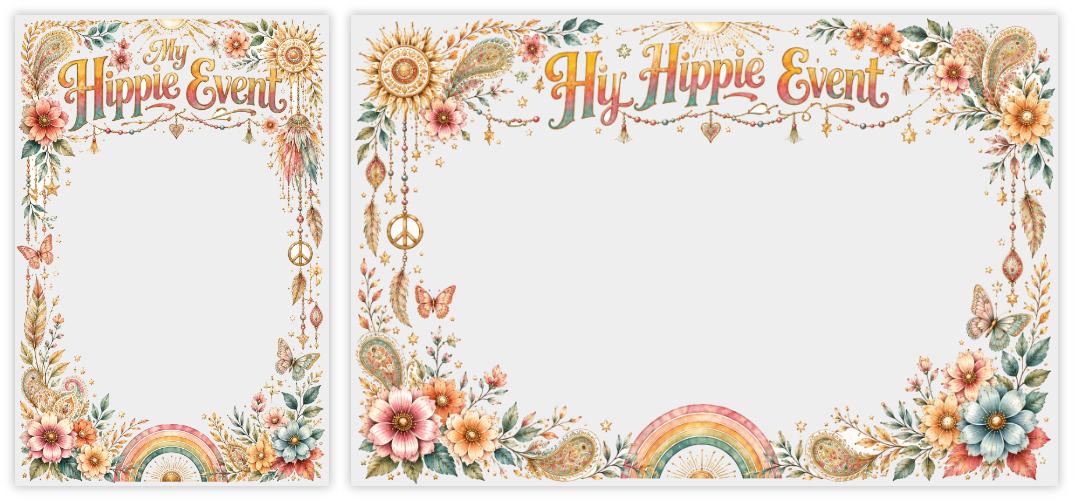
On Eventer, filters decorate your event’s photos: a frame, a logo or the couple’s names are overlaid on every photo taken with the camera and the photobooth. There are two ways to personalize them: the Personalized Filter, created directly in the app, and the Pro Filters option, which lets you import your own PNG visuals for a fully custom result. (To tell the two apart, see Personalized Filter / Pro Filters: which one to choose?.)
Pro Filters offers total creative freedom… but until now it required mastering a design tool or hiring a graphic designer. Not anymore: with AI, anyone can generate a quality filter, with no graphic design skills at all. Here’s how to create your filter directly with ChatGPT.
1. Generate the visual with ChatGPT
We use ChatGPT because it’s easily accessible and its graphic capabilities are good; any comparable generative-AI tool can also work. The prompt below was tested on ChatGPT 5.5 — results may vary depending on the version used.
A single prompt is now enough: ChatGPT can generate the filters directly as PNGs with a transparent background. The goal is to create two versions — one portrait and one landscape — with the graphic elements mainly placed along the edges, leaving a large transparent central area for the people being photographed.
Two things need to be customized in this prompt:
- The theme describes the mood and visual style you want — for example “rustic floral wedding”, “1980s neon birthday” or “elegant corporate seminar, blue and gold”.
- The text, kept short, is what will appear at the bottom of the filter: the event name or first names — for example “Marie & Paul”, “Julie’s 40th” or “Team Building 2026”.
Prompt — create the two transparent filters (replace [REPLACE WITH THE THEME] and [REPLACE WITH THE TEXT]):
I want to create two transparent photo filters for an event.

THEME: [REPLACE WITH THE THEME]
EXACT TEXT: [REPLACE WITH THE TEXT]

I want 2 separate images:

1. a portrait version at 1080x1620
2. a landscape version at 1620x1080

IMPORTANT:
The images must be generated directly with a transparent background.

These are filters meant to be overlaid on photos taken with a camera or a photobooth.

Most of each image must therefore remain transparent, especially the entire central area.

Visual objective:
Create two premium decorative photo frames, beautiful, rich and harmonious, suited to photos of people.

Expected style:
- premium illustration
- decorative, elegant, festive
- hand-drawn / illustrated / light watercolor / refined marker style
- fine details
- light textures
- clean outlines
- subtle small shadows
- beautiful composition
- harmonious and polished result

To absolutely avoid:
- clipart
- flat vector
- crude pictograms
- simplistic style
- childish design
- heavy solid color blocks
- advertising poster
- cheap result


Composition:
- create a real decorative frame
- concentrate the visual elements on the edges, the corners, the top and the bottom
- keep a very large, fully transparent central area for the people being photographed
- most of the image must be transparent
- the text must be large, beautiful and legible, placed at the bottom
- the text must not rise too high
- do not include any character
- do not include any photo
- do not put a full decor in the central area

Areas to keep especially clear:
- portrait: leave free the approximate central area x=170..910 and y=330..1320
- landscape: leave free the approximate central area x=240..1380 and y=220..860

Transparency:
- truly transparent background
- use the PNG alpha transparency
- do not draw a white background
- do not draw a colored background
- do not draw a checkerboard simulating transparency
- the center must be truly transparent

Requested delivery:
- one portrait image at 1080x1620
- one landscape image at 1620x1080
- PNG format with real transparency
Let ChatGPT generate the two filters. The resulting images are transparent straight away and can be used in Eventer.
Once generation is complete, ChatGPT shows you the filters it created. Open each image then download it: you get your transparent PNGs, ready to import into Eventer.
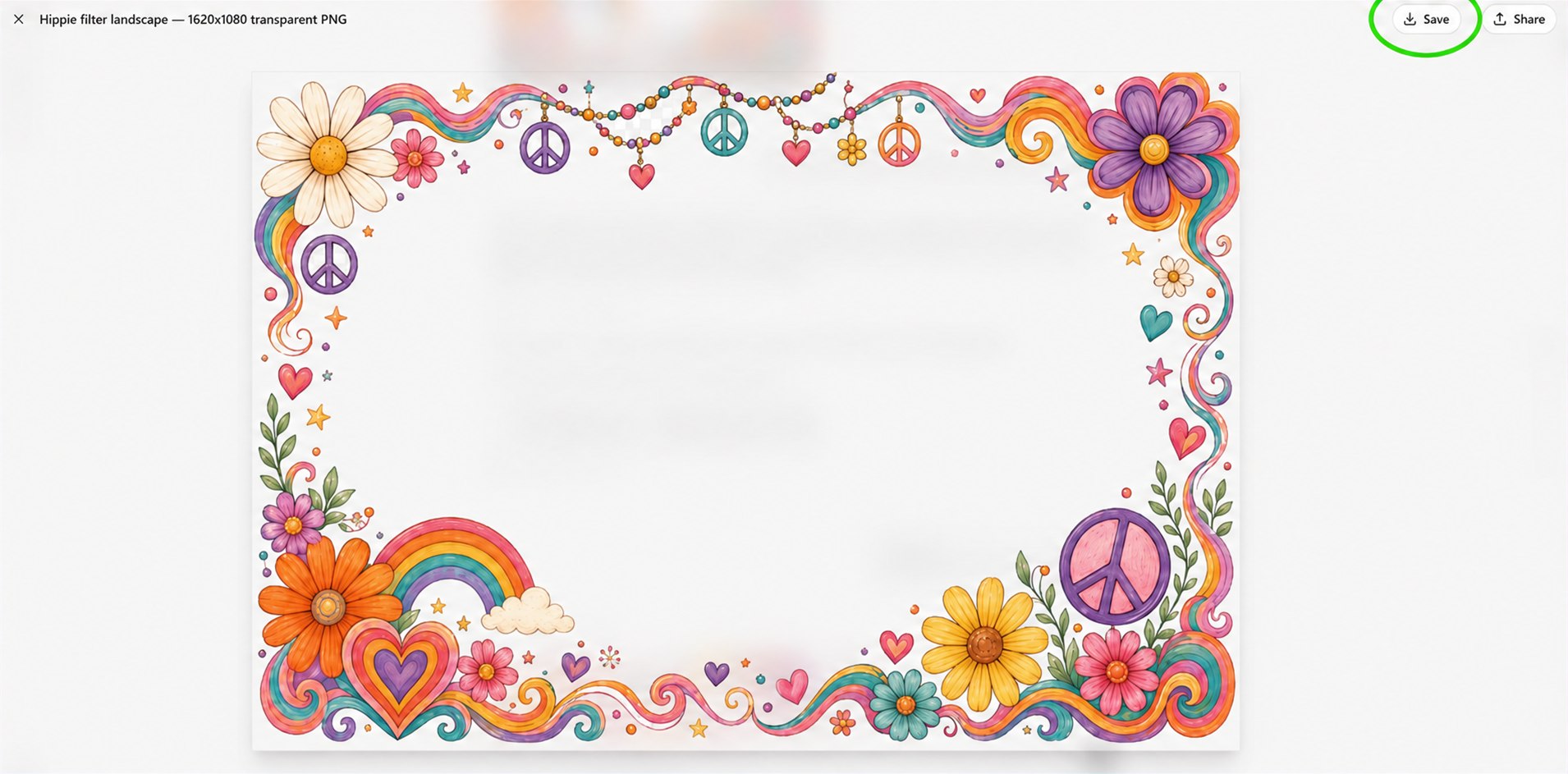
2. Integrate the filter into Eventer (Pro Filters option)
Once the Pro Filters option is enabled for your event, importing takes just a few clicks from a computer:
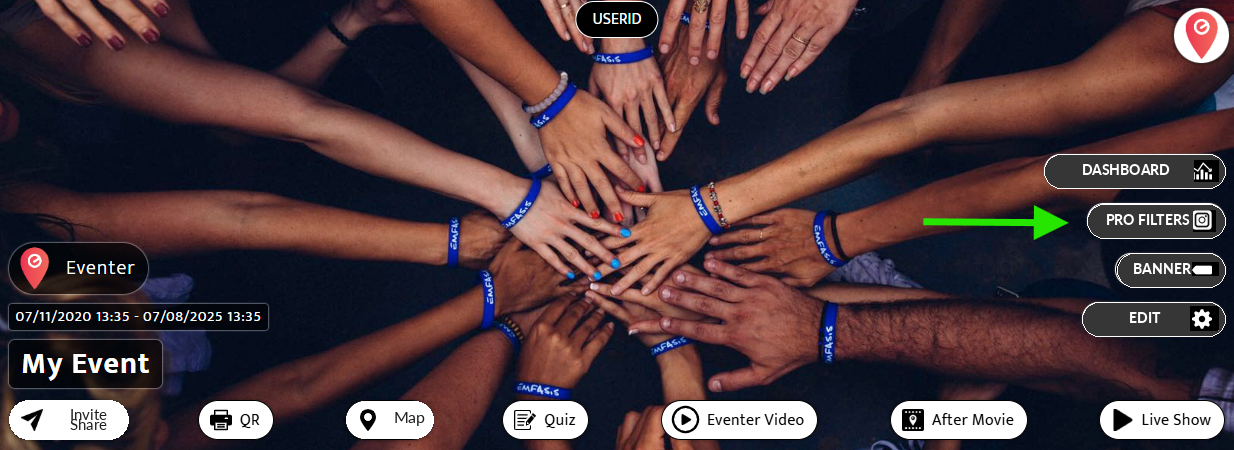
- Open your event on a computer via eventer.cc/web, then click the Pro Filters button, top right.
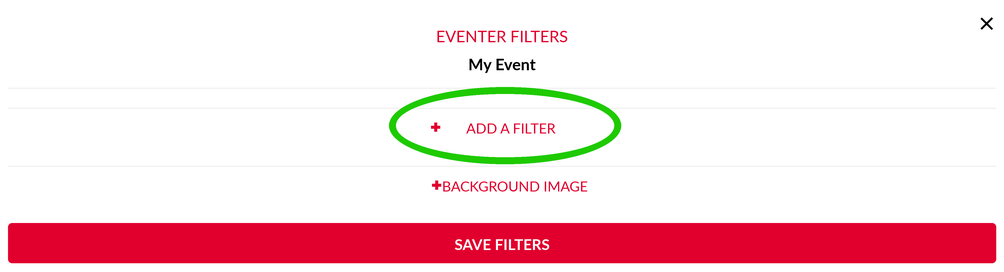
- Click + Add a filter.
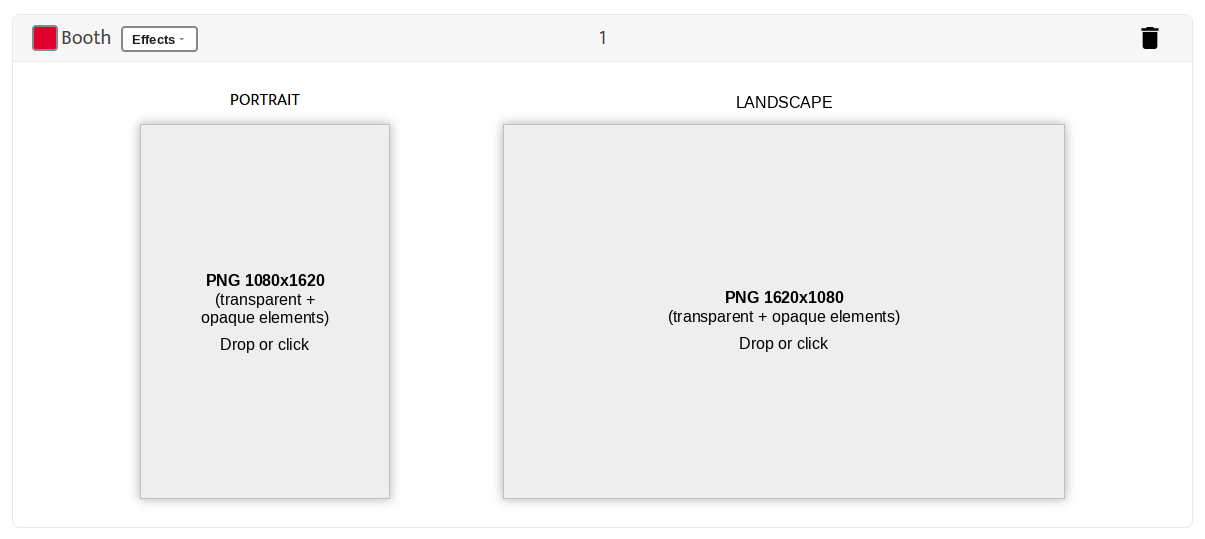
- Drop your portrait PNG (1080 × 1620) and your landscape PNG (1620 × 1080) into their respective zones. If your images aren’t exactly this size, Eventer adjusts them automatically.
Once both PNGs are dropped in, a preview of your filter appears in each zone:
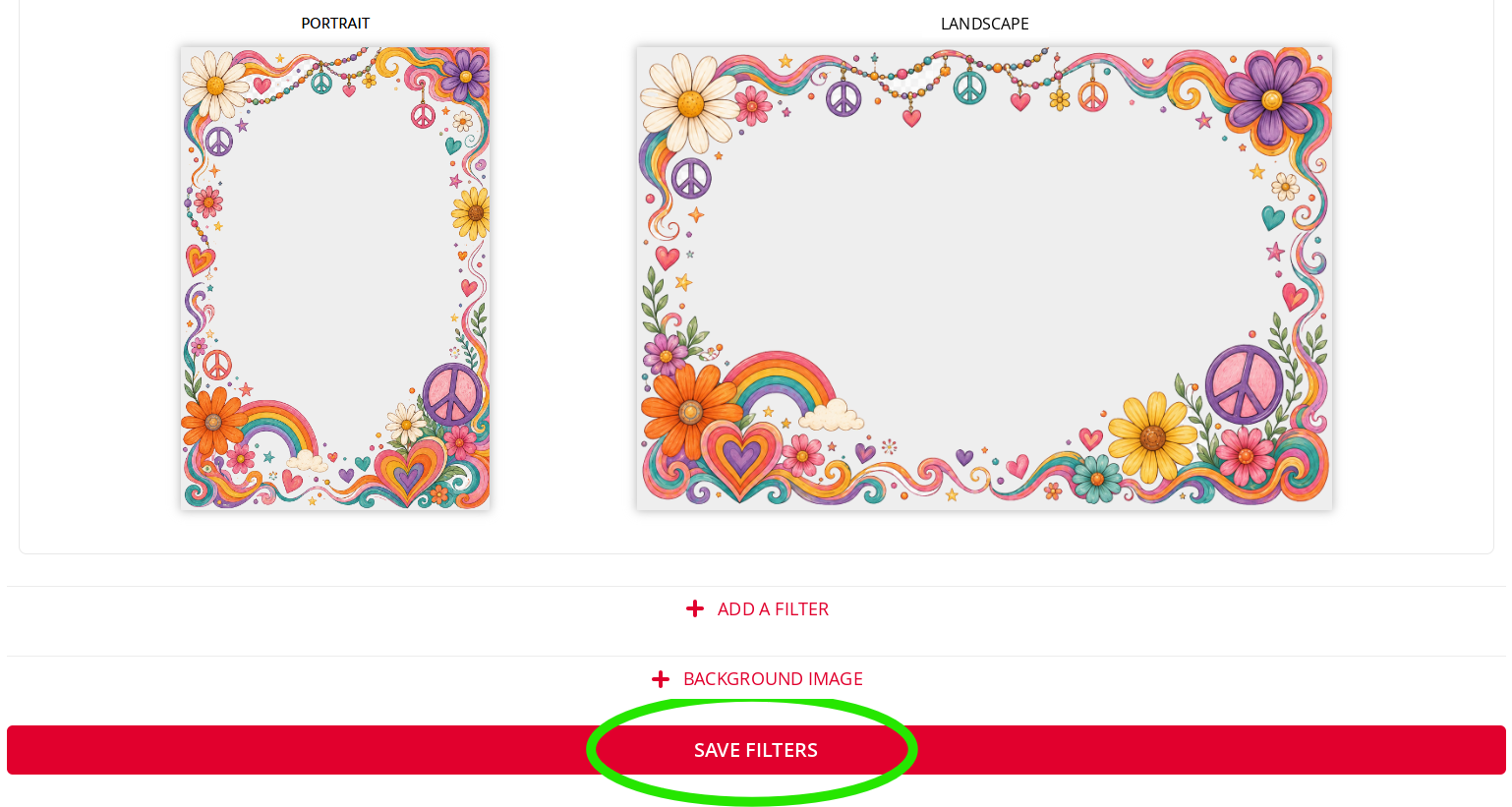
- Click Save filters.
That’s it: your AI filter will now apply to the photos taken with the camera and the photobooth.